非常好👍
AnimizoFX
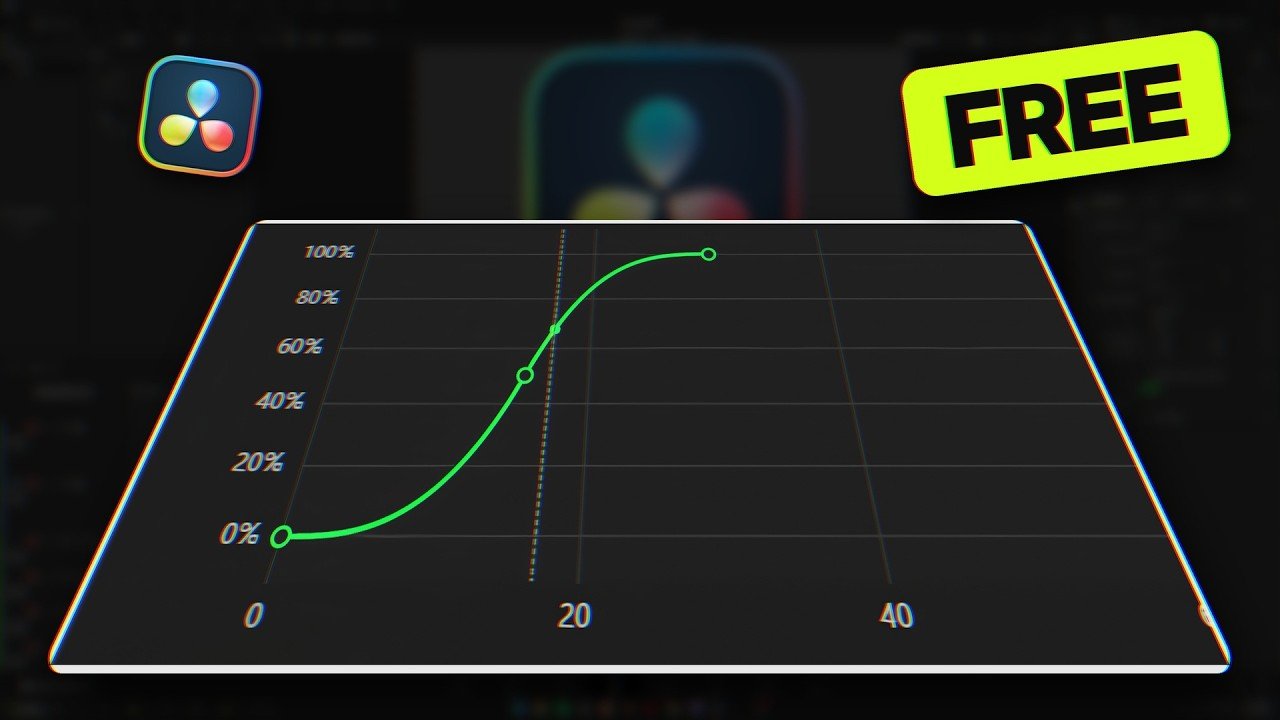
Animate position, size, rotation and opacity on any clip with 37 easing presets or your own curve. A free OpenFX plugin for DaVinci Resolve, with on-screen controls and a full animation timeline.
Free7,752 downloads Download
Genial
sehr gut
animizo
it is really useful tool I will use this a lot for every project
Super Plugin
Awesome work
This makes some animations sooo much easier. Great tool.
your the KING
Incredibly generous, useful, and brilliantly designed tool
Coming from an After Effects background I've never gotten over how much I dislike keyframing in Fusion/Davinci. Though great for compositing, the interface and process for motion gfx has always been a point of frustration. This plugin completely upended that frustration, and provides a superior keyframe experience to not just Fusion but any motion graphics tool I've worked with.
Film Director/ senior colorist / Mfx
This is a game changer to all Davinci kings. we thank Clipizo to come out to simplify his young brothers and sister giving out free plugins for davinci resolve.
Hope everyone sees this as an opportunity to learn and explore motion graphics
great tool
Thanks a lot for developing such a Great Tool - for free!
nice handling, like the grafik
Amazing plugin! Thank you so much.
This plugin help me a lot with editing in edit page cause the edit page curves just sucks mind. Thanks to the creator of its creator
I’d like you to add motion blur. That’s definitely the only thing I think it’s missing. What you’ve created is mad, mate!
Very useful
I use in my videos.
Best Davinci Resolve plugin out there
This is honestly the best plugin I have ever seen. And the fact that this is free is amazing. This plugin makes animations a LOT easier and fun to make.
I've also looked at other Clipzo plugins, and they are really good. Keep up the amazing work!
Amazing as Always
Amazing Man Your Great and this is Greatest.
Clipizo the goat
Thank you for your work. This is a life saver
Awesome Plugin
**An incredible plugin, especially for a free tool!**
AnimizoFX is an absolute game changer for DaVinci Resolve. The huge variety of easing curves, animation presets, and customization options makes animating clips incredibly fast and convenient. Having native motion blur that you can enable with a single click is the cherry on top.
The fact that everything is available right on the Edit page makes the workflow even better — no need to jump into Fusion for basic animations. It saves so much time while still giving you plenty of control over the result.
Honestly, it's hard to believe this plugin is completely free. Huge thanks to the developer for creating such a useful tool for the DaVinci community!
its so crazy nice plugging
best product! I really don't understand why some people leave negative reviews I love this
Great product and excellent experience! I really don't understand why some people leave negative reviews. Instead of hurting a business, they could easily contact the seller first to try to understand or fix the issue. The customer service is helpful, and there is always a solution if you just communicate. I highly recommend this!
Best Freaking Plugin Ever
I have seen people paying 100s of dollars for this type of plugin, but clipizo !!
Its unreal that u are giving it for absolutely free man. Loved the Plugin so much ❤️
Really helpful animation device
Animizo makes animation so much easier, I would highly recommend it!! One thing that I would like to be added is being able to animate it moving to multiple positions (idk if there already is this feature but I don’t think there is). Overall, it’s such a great plugin!!
Yes the feature is already there in the latest update, it's called "add keyframe" . Enjoy
For me, a newbie trying learn to add some motion graphics into their clip, this plugin help me very well. But i just got some issues with the performance when i added a few high quality images in fusion page, its lagging and cause crash sometimes. Anyway your plugin still very good, thx for your contribution.
Has limited potential.
I've encountered a … quirk, in the operation. I won't call it a bug, but it's a funny behaviour. Many of the adjustments, like changing the curve in the browser panel, or adjusting the start and end positions using the controls in the preview window, don't take effect until the playhead / edit point is moved. This may be a side effect of the link between the add on and Davinci, but it initially puzzled me why changes didn't seem to work. This requirement to move the playhead after changes wasn't mentioned in the demo video and I think it should be.
I need a little help!
For some reason, I'm not able to install AnimizoFX. I not sure what's wrong, but I can't install it.
the way you ask for help is by giving it 2 stars? genius
Would not work
This is a great idea and I really appreciate the free version but it would not work as it would not confirm the licence key. It said it could not connect
most likely wrong key
Hi, I really want to give a go with this plugin but for some reason I cannot install it on my Mac (M2 Max). I get this warning:
Apple could not verify “AnimizoFXInstaller-macOS.pkg” is free of malware that may harm your Mac or compromise your privacy.
I already mentioned that in the video, but looks like you didn't watch it
Write a review
After you download AnimizoFX, your download email has a Leave a review link. Reviews written there appear here labelled Verified download.
Write a review as a Clipizo member
Uses a free Clipizo account. Your review is labelled Clipizo member and appears after approval.
Verified reviews come from Clipizo downloads · Member reviews are moderated · No review is hidden for its rating.
Overview
AnimizoFX brings eased motion to any clip in DaVinci Resolve. Pick a property, set where it starts and ends, and choose one of 37 easing presets or a custom curve.
It works on the Edit, Color and Fusion pages, with handles you drag in the viewer and a full animation timeline for In and Out animations, extra layers and continuous motion such as float, drift and sway.
AnimizoFX is free. The download includes the Windows and macOS installers and your free license key.
Requirements
- Software
- DaVinci Resolve or Resolve Studio 21.1.1 or newer, on the Edit, Color and Fusion pages
- Operating system
- Windows 10 (version 1903 or later) or Windows 11, 64-bit; macOS 15 or later on Apple silicon (Resolve 21.1's minimum)
- License
- A free key comes with the download; one key covers up to 3 computers and works offline
- Download
- Installers for Windows and macOS on your personal download page
Questions about your setup? Ask in the Clipizo Discord or send us a message.
Key features
- Animates position, size, rotation and opacity, each with its own timing and easing.
- 37 easing presets, or a custom curve of your own.
- In and Out animations, with Mirror to replay the In curve backwards.
- Up to four animation layers stacked with Overlap.
- Continuous motion: Float, Drift, Sway, Breathe or Soft Shake.
- On-screen handles in the viewer and a full animation timeline window.
- Works on the Edit, Color and Fusion pages.
- Renders on the graphics card: CUDA on Windows with NVIDIA graphics, Metal on every Mac.
- Motion blur on the Edit, Color and Fusion pages, with Quality, Shutter Angle, Center Bias and Sample Spread.
- A pivot for Size and Rotation, dragged in the viewer.
- One free key covers up to 3 computers and works offline.
Best for
- Titles and lower thirds that ease in and out
- Picture-in-picture moves and pop-ups
- Logo and graphic reveals
- Gentle motion on stills and screenshots
Setup & help guide for AnimizoFX Install, find it in Resolve, the controls, common problems, uninstall
AnimizoFX 1.3: Windows 10 (version 1903 or later) or Windows 11, 64-bit, or macOS 15 or later on Apple silicon (Resolve 21.1's minimum). DaVinci Resolve or Resolve Studio 21.1.1 or newer.
Install
- Close Resolve and save your project first. On Windows, the installer can close Resolve for you.
- Windows: run AnimizoFXInstaller.exe. If “Windows protected your PC” appears, choose More info, then Run anyway, and allow the administrator prompt.
- macOS: open AnimizoFXInstaller-macOS.pkg. If macOS blocks it, open System Settings → Privacy & Security and choose Open Anyway.
- The plugin installs to C:\Program Files\Common Files\OFX\Plugins\AnimizoFX.ofx.bundle on Windows, with its Fusion node layout, or to /Library/OFX/Plugins/AnimizoFX.ofx.bundle on macOS.
- A newer installer updates AnimizoFX in place and keeps your animations and node defaults. The previous version is kept once as a backup.
Where it appears in Resolve
Add AnimizoFX from Resolve’s Effects / OpenFX list to a clip on the Edit or Color page, or search AnimizoFX in Fusion. To activate it, click Open Timeline in the Inspector, choose Enter Key and paste the free key from your download email (it is also shown on your personal download page): it confirms “AnimizoFX is activated”.
Controls in plain words
Some controls appear only after choosing the relevant mode.
Animation
- Open Timeline
- Opens the full animation timeline window. Before activation it opens the key dialog instead. There, Left and Right step a frame and Space plays or stops; with the curves shown, open the padlock to drag points. Ctrl+Z undoes a change made in the window and Ctrl+Shift+Z or Ctrl+Y redoes it (Cmd+Z and Shift+Cmd+Z on a Mac).
- Fit to Comp
- Fusion page only: puts the picture coming into AnimizoFX on a transparent canvas the size of the comp (a Background and a Merge in front of the node), so moves aren’t cut off at its edges and the viewer’s points sit on it. The picture keeps its size; one bigger than the comp is scaled down to fit. Undo puts it back. AnimizoFX nodes added before 1.2.2 don’t have the button: add a new one.
- Position / Size / Rotation / Opacity
- The property tabs. Each property has its own timing and easing.
- Easing Curve
- One of 37 presets, Linear, or Custom Curve, which you edit with Browse.
- Start Frame / End Frame
- When the animation runs. Each Capture button takes the playhead’s frame.
- Start / End values
- Start Position and End Position, and the matching size, rotation and opacity values.
- Add Keyframe
- Keeps the In going after End through up to six more keyframes, each with its own frame, value and curve. Smooth, the default, moves through each keyframe without stopping; an easing preset, Linear or Same as In makes a move of its own.
- Position path
- In the viewer, click one of Position’s points to show its handles, then drag one to bend the way to the next point, for arcs and circles; hold Alt (Option on a Mac) to move one handle alone. Double-click a point for Smooth (a rounded way through it) or Linear (a corner).
- Animation Offset, Reverse, Loop, Strength
- Shift, play backwards, repeat or soften the animation.
- Pivot
- Size and Rotation turn around a pivot that moves with the picture. Drag its target in the viewer on the Size or Rotation tab; it starts at the centre.
- Copy to All Properties
- Gives the other three properties this animation’s frames, curve, Strength and timing options. Their values stay.
Out, layers and motion
- Out Animation
- Animates the clip out. Mirror replays the In curve backwards, optionally as soon as the In animation ends; with Mirror off it has its own frames, end value, curve and strength.
- Overlap
- Enable Layer 2, 3 and 4: extra animation layers stacked on the first.
- Motion
- Continuous Float, Drift, Sway, Breathe or Soft Shake, with Strength, Speed, Variation and Follow-through.
- Motion Blur
- On the Motion tab, on the Edit, Color and Fusion pages: Quality, Shutter Angle, Center Bias and Sample Spread. It blurs only frames that move. On the Fusion page, use it instead of the node’s own Motion Blur, never both.
- Disable Viewer Overlays
- Hides the on-screen handles. Otherwise you can drag the position handles and the frame numbers on the viewer’s timeline strip.
Common problems
- “AnimizoFX needs a free license key”
- The clip stays unchanged until activation. Click Open Timeline, choose Enter Key and paste your key. If a cached frame still shows the box after activating, move the playhead.
- Activation does not work
- Activation needs internet once; after that AnimizoFX works offline and renews itself every 30 days. One key covers up to 3 computers.
- “Failed to load” on Windows
- Resolve’s Preferences → Video Plugins lists AnimizoFX as “Failed to load” when Windows blocks the plugin: usually Smart App Control or an antivirus. “Antivirus and security warnings.txt” on your download page explains what to do.
- The installer is blocked
- The installers are not signed yet. Windows: More info, then Run anyway. macOS: System Settings → Privacy & Security → Open Anyway. “Antivirus and security warnings.txt” on your download page explains every warning and how to check your download.
- Black areas on the Edit page
- On an adjustment clip, areas the animation uncovers render black instead of transparent. That is a Resolve limitation; Fusion compositions are fine.
- An old Fusion node layout
- Add AnimizoFX again from the Effects library: new nodes always get the current layout.
- Motion blur stutters
- Heavy motion blur (Quality 10) at 4K can be too much to play live on base Apple Silicon. Lower Quality while editing and raise it for the final render.
- Effects cut off on the Fusion page
- Fusion cuts effects at the edges of the image they receive. If your image is smaller than the comp, click Fit to Comp under Open Timeline: it puts the image on a comp-size canvas in front of AnimizoFX. An AnimizoFX added before 1.2.2 doesn’t have that button: add a Letterbox node right before it (thanks Ducky), or put your image on a full-size canvas: a Background node with its alpha at 0 into a Merge’s yellow input, your image into the green one, then the Merge into AnimizoFX. Do either before animating. Or apply AnimizoFX on the Edit page.
Uninstall
- Windows: close Resolve, then open Settings → Apps → Installed apps → AnimizoFX → Uninstall.
- macOS: close Resolve, then run in Terminal: sudo bash "/Library/Application Support/Clipizo/AnimizoFX/uninstall.sh"
Still stuck? Click Open Logs Folder at the bottom of the AnimizoFX Inspector, then contact Clipizo with AnimizoFX.log, your Resolve version, operating system and the exact error message.
Get AnimizoFX
Check the requirements first.
Free7,752 downloads Download
Updates log
v1.3
AnimizoFX v1.3 lets you draw the path Position takes: handles on its points bend the way between them, for arcs and circles. The timeline window also gets the new Clipizo look.
What's new in 1.3
- Handles on Position's points in the viewer: click a point to show them, then drag one to bend the way to the next point, for arcs, curves and circles. A smooth point keeps its two handles in line; hold Alt (Option on a Mac) to move one alone and make a corner. Animations made before play exactly as they did until you move a handle.
- Double-click a point to choose Smooth, which rounds the way through it, or Linear, which makes it a corner. Four Smooth points around a circle make a circle.
- The timeline window has the new Clipizo look: the tab you are on is underlined; Browse, the lock and the curves button turn grey instead of green when they are on; every curve in the Curve Browser has a round button that fills in on the one in use; and the zoom and close buttons show tips.
v1.2.2
AnimizoFX v1.2.2 adds Fit to Comp on the Fusion page, so a picture smaller than the comp can move across the whole frame.
What's new in 1.2.2
- Fit to Comp, under Open Timeline on the Fusion page: one click puts the picture coming into AnimizoFX on a transparent canvas the size of the comp, so moves aren't cut off at its edges and the viewer's points sit on the picture. The picture keeps its size, and Undo puts it back. AnimizoFX nodes added before this update don't have the button: add a new one.
v1.2.1
AnimizoFX v1.2.1 adds undo and redo to the timeline window.
What's new in 1.2.1
- In the timeline window, Ctrl+Z undoes your last change there (moved points, keyframes and markers, curve presets, Smooth Through) and Ctrl+Shift+Z or Ctrl+Y redoes it; on a Mac, Cmd+Z and Shift+Cmd+Z (a user's request).
v1.2
AnimizoFX v1.2 lets an animation keep going after End through more keyframes, moving smoothly through them, and adds a graph you can shape, a Linear curve and keyboard keys in the timeline window.
What's new in 1.2
- Keyframes after End: click Add Keyframe in the Inspector and the In keeps going through up to six more keyframes (3 to 8), each with its own frame and value, for every property. Reverse, Loop, Offset, Mirror and the Out follow all of them.
- Smooth motion through keyframes, on by default: the movement flows through each keyframe on its frame without stopping, rounds corners and slows only where it turns back. Pick an easing preset, Linear or Same as In for a keyframe that should be a move of its own.
- The timeline window's graph shows the whole movement as one curve, with a dot on each keyframe. Open the padlock and drag a dot to change its frame or value, or right-click a point and untick Smooth Through to make the movement stop there.
- In the viewer, every point sits exactly on its spot and shows its keyframe number (Start is 1, End is 2), and a smooth path shows its real curve. Overlap layers' points carry an L2, L3 or L4 tab, and the Out's end an Out tab.
- A Linear curve for constant speed, last in every Animation Curve list and in the Curve Browser.
- In the timeline window, the Left and Right arrow keys step the playhead a frame, and Space plays to the end of the clip or stops (a user's request).
- "Antivirus and security warnings.txt" now explains what to do when Resolve says AnimizoFX "Failed to load" on Windows.
Bug fixes
- The Windows installer now tells you which program is blocking an update, and keeps your installed AnimizoFX when an update can't go ahead.
v1.1.2
AnimizoFX v1.1.2 fixes animations at half and quarter playback resolution.
Bug fixes
- At half and quarter playback resolution, animations now land in the same place and at the same size as at full resolution. Before, they could move to the wrong place, change size or leave the frame.
v1.1.1
AnimizoFX v1.1.1 brings motion blur to the Fusion page, a pivot for Size and Rotation, and a smoother timeline window.
What's new in 1.1.1
- Motion blur now works on the Fusion page too, on the Motion tab. It blurs only frames that move. Use it instead of the node's own Motion Blur on the Settings tab, which renders every frame several times, still ones too. Don't use both.
- Motion blur is much quicker on frames that don't move.
- A pivot for Size and Rotation: the picture scales and turns around it, and the pivot moves with the picture. Drag its target in the viewer on the Size or Rotation tab. Each layer has its own (the Out uses the In's). It starts at the centre, so existing projects look the same.
- Copy to All Properties, a button on each animation: the other three properties get the same frames, curve, Strength and timing options, and keep their own values.
- In the timeline window, Shift-drag a point or handle (with the padlock open) to keep it horizontal or vertical.
- With Overlap layers shown, the viewer's Position handles show their layer number.
- The Windows installer now ticks "Launch DaVinci Resolve" on its last page.
Bug fixes
- The clip no longer lags during playback while the timeline window is open (reported on Discord).
- Hold Ease now moves like the Animizo Modifier's Ease Hold Ease; in 1.1 it moved like Ease In Out.
- Motion now fades out during any property's Out animation, not only Position's.
- An Out animation after a reversed or looping In now starts where the In is, with no jump.
- Windows: the viewer's hover tip no longer stays on screen over other apps.
v1.1
AnimizoFX v1.1 renders on the graphics card, adds motion blur on the Edit and Color pages and a troubleshooting log, and fixes several issues.
What's new in 1.1
- Much faster: AnimizoFX now renders on the graphics card. In Resolve that is CUDA on Windows with NVIDIA graphics and Metal on every Mac; Windows with AMD or Intel graphics still renders on the processor. In our tests a 1080p frame went from about 18 ms to under 1 ms on an RTX 4070 Ti, and from about 23 ms to about 2 ms on an Apple M1.
- Motion blur on the Edit and Color pages, on the Motion tab: Quality, Shutter Angle, Center Bias and Sample Spread. On the Fusion page, use the node's Settings tab as before.
- A new Open Logs Folder button at the bottom of the Inspector: a small troubleshooting log you can send to Clipizo. It never holds your license key, names, file paths or projects, and AnimizoFX never sends it anywhere.
- "Couldn't reach the license server" now says why.
- The download includes "Antivirus and security warnings.txt", which explains the Windows, macOS and antivirus warnings and how to check your download.
Bug fixes
- Fusion page tip: Fusion cuts effects at the edges of the image they receive. If your image is smaller than the comp, add a Letterbox node right before AnimizoFX so it gets a comp-size image (thanks Ducky). If that doesn't work, put your image on a full-size canvas instead: add a Background node and set its alpha to 0, connect it to a Merge's yellow input and your image to the green one, then connect the Merge to AnimizoFX. Do either before animating, since AnimizoFX measures positions against the image it receives. Or apply AnimizoFX on the Edit page.
- The Motion presets (Float, Drift, Sway and the others) no longer fade from the first frame when an Out animation is on.
- On the Mac, Cmd+V pastes into AnimizoFX's windows: the license key, frame numbers and curve names.
- The activation notice clears right after activating, and reads more clearly.
- The Windows installer no longer uses PowerShell, and its "Launch DaVinci Resolve" checkbox shows in full on high-resolution screens.
- Fixed a possible crash when quitting Resolve while AnimizoFX was renewing its activation in the background.
v1.0.0
The first release: eased position, size, rotation and opacity on any clip, with 37 easing presets or a custom curve, on the Edit, Color and Fusion pages.